PiP layouts explained
What is a picture-in-picture (PiP) layout?
A PiP layout is a branded frame that defines where each video feed sits in the finished output. It carries your event branding: the event lockup, logo placement, and the lower-third area where speaker names and titles appear. Which layout is possible depends entirely on what source footage was captured. The right layout is determined by what you have, not what you want.
Each dashed box represents an asset zone in the layout. Feeds composite on top; brand elements sit in the bottom bar.
When are PiP layouts used?
PiP layouts are standard for event video across every format. When and how the layout gets applied depends on how the event was produced.
What you record determines what's possible
The layout your team can build depends on what recordings were captured. Here are the three main scenarios.
The single switched output from your live event or webinar platform. Camera cuts and mixing are already baked in. Your team can add a branded graphic overlay and clean the audio, but cannot separate or reposition the individual feeds.
Request a clean program feed with no graphics already burned into the video. A feed with graphics baked in limits what can be adjusted in post.
Two separate recordings: a camera or video feed of the speaker, and a separate capture of the presentation content. Because the feeds are separate, the editor composites them precisely and controls where the speaker sits.
What these feeds look like depends on the setup:
- Virtual events and webinars: Speaker feed is the presenter's camera. Content feed is a separate screen capture of what they are sharing.
- Multi-speaker webinars: A switched speaker feed cutting between participants, plus the shared screen recorded separately.
- Live in-person events: Speaker feed is the IMAG output (the camera shown on the large audience screens). Content feed is the separate video output of the slides and videos being displayed.
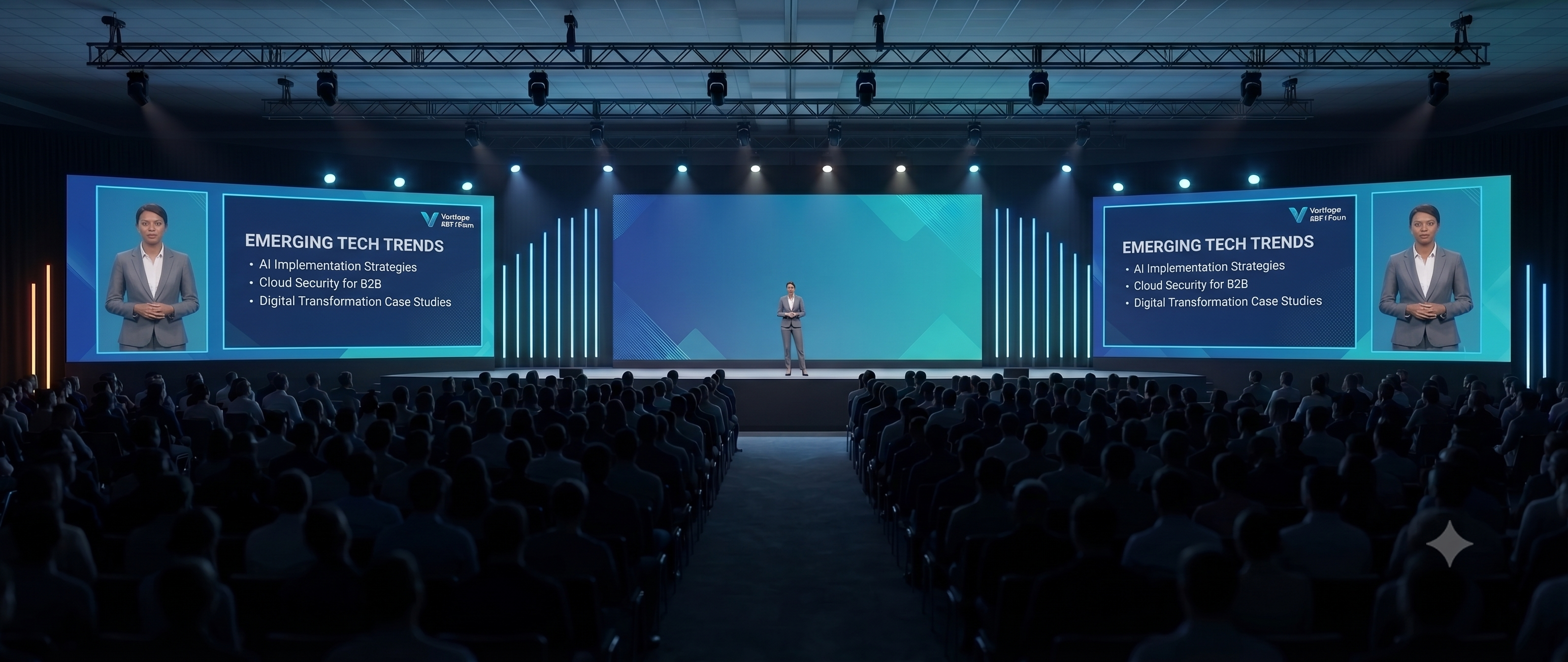
Filming the projected screen on the wall is not the same as a direct capture. Ask your AV team to record the content feed as a separate digital output.
Separate camera recordings for each remote participant, captured independently. Applies to virtual and hybrid events where each speaker is joining remotely. The editor can cut between speakers, build side-by-side layouts, or combine feeds as needed.
This does not apply to in-person panels or fireside chats. For sessions where multiple speakers share a stage, a wide shot is the standard approach.
A production tool that captures each remote participant as a separate file. A platform's standard recording (gallery view or active speaker) is already mixed and does not give you individual feeds.
Program feed: the switched output, already cut and mixed. ISOs (isolated recordings): individual sources recorded as separate files. ISOs give post-production the most flexibility: precise compositing, layout adjustments, and the ability to correct live switching decisions after the fact.
2 reasons PiP layouts uplevel your recording
A raw recording captures what happened. A PiP layout turns it into a deliverable.
Every deliverable in your library carries the same frame: event lockup, logo placement, lower-third style. A library of 40 sessions looks like a curated product rather than a pile of recordings, regardless of who spoke or what format the session used.
When a virtual event platform's default recording is used, the active speaker's camera is overlaid directly on the shared screen. Unless the slide deck was designed with a safe zone that keeps key content away from that corner, the speaker window covers charts, data, or text. That overlay is baked in and cannot be removed without rebuilding the content from scratch. Recording separate feeds, or using a production setup where speaker and content are switched rather than overlaid, prevents this entirely.